Guide
How quiklink.ai works
quiklink turns the links you save into a private, auto-organised research library — and lets you publish curated collections as clean, shareable pages with click analytics. Here's the whole flow.
On this page▾
1. The big picture
Every account has two sides. Your private library is just for you: every link you save, with AI-generated summaries, your own notes, and tags. Nobody else can see it. Your public side is what you choose to publish: curated collections that become polished, shareable pages at your own handle. A third layer, analytics, tracks every click on everything you publish.
The golden rule: nothing is public until you explicitly publish it. Public pages are served from frozen edition snapshots — an immutable copy taken at publish time — so your live private library is never exposed.
2. Saving links
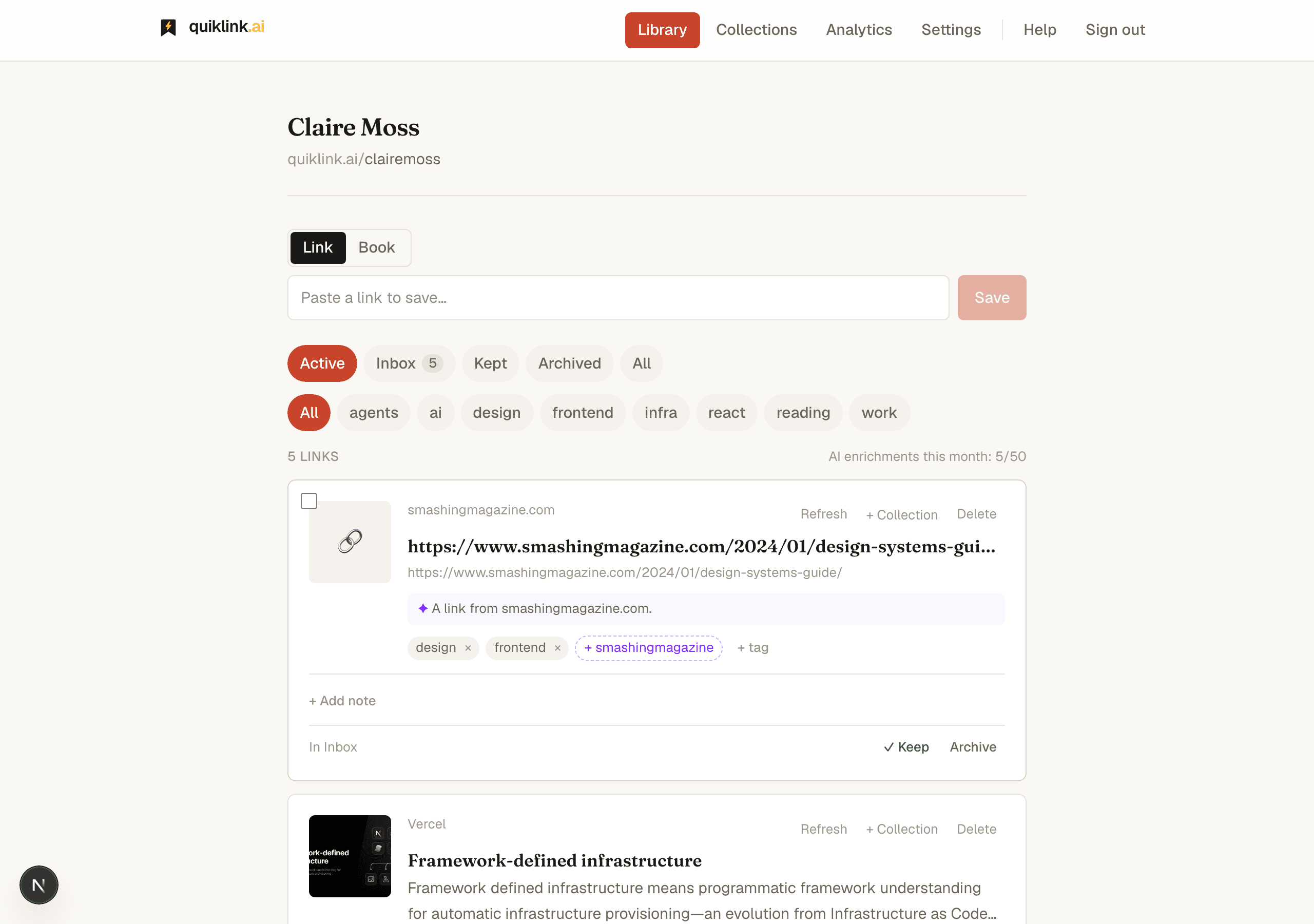
Saving is designed to feel instant. Paste any URL into the input at the top of your library and press Save — the card appears immediately while quiklink fetches metadata and runs AI enrichment behind the scenes. You never wait on the network.
- 1Paste a URL and press Save. The card appears in your library right away with a numbered placeholder while the preview loads.
- 2In the background, quiklink fetches the page title, description, and preview image from the source.
- 3Then it runs an AI pass for a concise summary and a few suggested topical tags (see AI summaries).
Other ways to save
The paste-and-save box works from the library, but quiklink supports three additional capture methods:
- Bookmarklet — fastest on desktop. Grab it from Settings. Drag the bookmarklet to your browser's bookmark bar, then click it on any page to drop the link into your library in one click.
- Browser extension — a one-click toolbar button for Chrome, Edge, and Brave, now on the Chrome Web Store. See Browser extension below.
- iPhone app — the quiklink app for iPhone adds a native Share-sheet action: tap Share in any app and choose quiklink to save straight to your library. See iPhone app below.
- Add to home screen (Android / other) — no native app yet on Android, but you can install quiklink as a web app (Chrome: menu → Install app) and share pages to it from the system Share menu.
3. Browser extension
The Save to quiklinkextension is the fastest way to save on desktop. It adds a toolbar button and a right-click menu to your browser, so you can save the page you're reading straight to your library without a tab switch. It uses your existing quiklink sign-in — there's no API key or extra setup.
Three ways to save
- Toolbar popup — click the quiklink icon to save the current page, tweak its title, and see your recent saves.
- Right-click menu— “Save this page to quiklink” on any page, or “Save link to quiklink” on any link.
- Floating button(optional) — a save button in the corner of every page. Off by default; enable it in the popup's Settings, which asks for the extra page-access permission only when you turn it on.
4. iPhone app
The quiklink app for iPhoneputs your whole library in your pocket. It's a thin, fast client over the same account — everything you save on your phone shows up on the web instantly, and vice versa. Sign in once with your existing quiklink account; there's no separate setup.
What you can do
- Share-sheet saving — from any app (Safari, Mail, X, Reddit, a podcast player…), tap Share and choose quiklink to drop the link straight into your library. The share extension saves in the background so you never leave what you were doing.
- Browse & triage anywhere — read your library, work through your Inbox (keep / archive), search, and open links from your phone.
- Links open in the app — thanks to Universal Links, tapping a
quiklink.aicollection or link on your iPhone opens it directly in the app when it's installed.
5. AI summaries & tags
Each saved link gets a short AI-generated summary and a handful of suggested topical tags, so your library stays scannable without manual curation work. Enrichment always runs in the background — a slow or failed AI call never blocks saving, and the link is usable immediately while enrichment catches up.
- Monthly quota.There's a free monthly cap on AI enrichments, shown as “AI enrichments this month” in your library header. Over the cap, links still save — the summary is simply skipped until you retry or add your own key.
- Bring your own key. Add your own Anthropic API key in Settings → AI key. Your enrichments then run on your key, bypassing the monthly cap entirely. The key is stored encrypted and never logged.
- Refresh / Retry. Use the per-card Refreshbutton to re-fetch the page metadata and re-run the AI summary at any time — useful if a site initially blocked quiklink's crawler.
6. Inbox & organizing
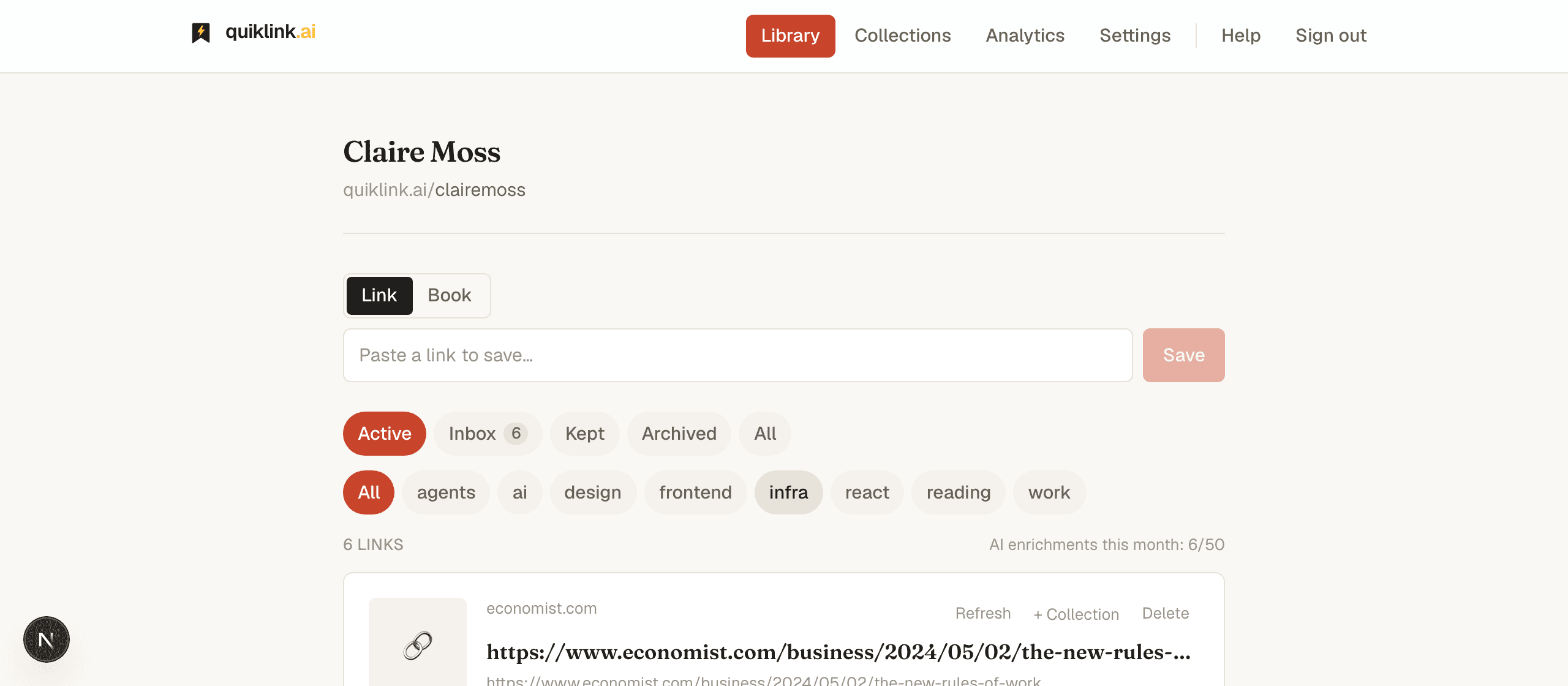
Every new link lands in your Inbox — a triage queue at the top of the library. From there you can keep a link (moves it to your main library), archive it (hides it from Active view), or leave it in inbox until you decide. Use the status filter bar to switch between Active, Inbox, Kept, Archived, or All views.
- Notes.Add your own editorial note to any link with “+ Add note”. When you publish a collection, your note becomes the blurb readers see alongside the link — it replaces the AI summary on the public page.
- Tags.Add tags with “+ tag”. AI-suggested tags appear with a dashed border — click one to promote it to a confirmed tag. Tags are private to you and do not appear on published pages.
- Filtering. The tag filter bar above your library narrows the view to a single tag. Combine it with the status filter to find exactly what you need as your library grows to hundreds of links.
7. Collections
A collection is a curated, ordered list of links — your unit of publishing. Create one from the Collections page, give it a title and an optional description, then add links to it from your library using the “+ Collection” menu on any link card.
The collection detail view
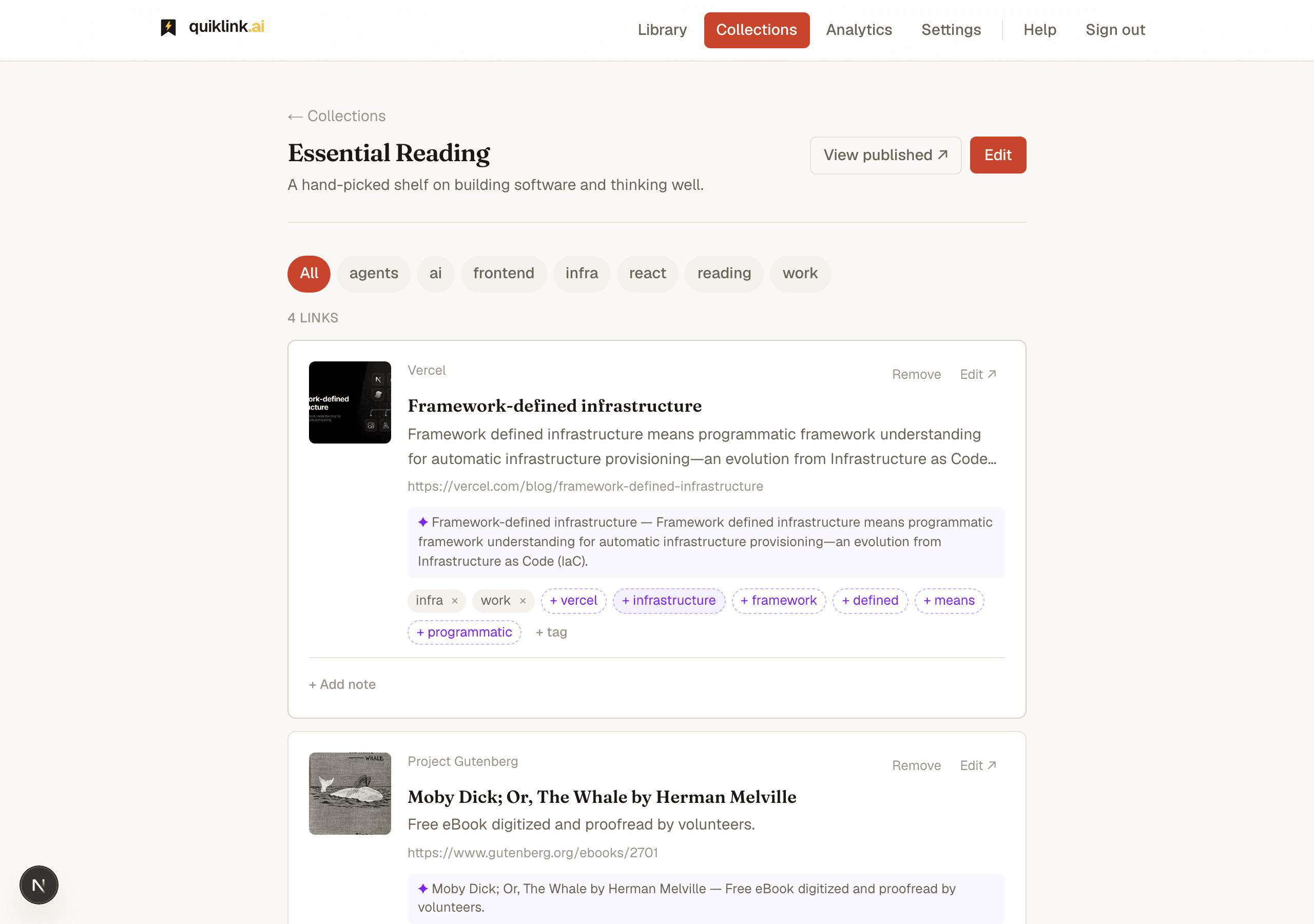
Clicking a collection card on the Collections page opens its detail view— a browse experience that shows the collection's links as library-style cards in their curated order, with the same summaries, notes, and tags you set in your library.
- 1Browse the links in their published order. Summaries, notes, and tags are all visible just as they appear in your library.
- 2Use the tag filterbar to narrow the view to a single topic across the collection's links.
- 3Click Edit (top-right) to open the collection editor where you can reorder links, change the title, description, and visibility, or choose a template.
- 4Once the collection is published, click View published ↗ (top-right) to preview the live public page in a new tab.
8. Publishing & editions
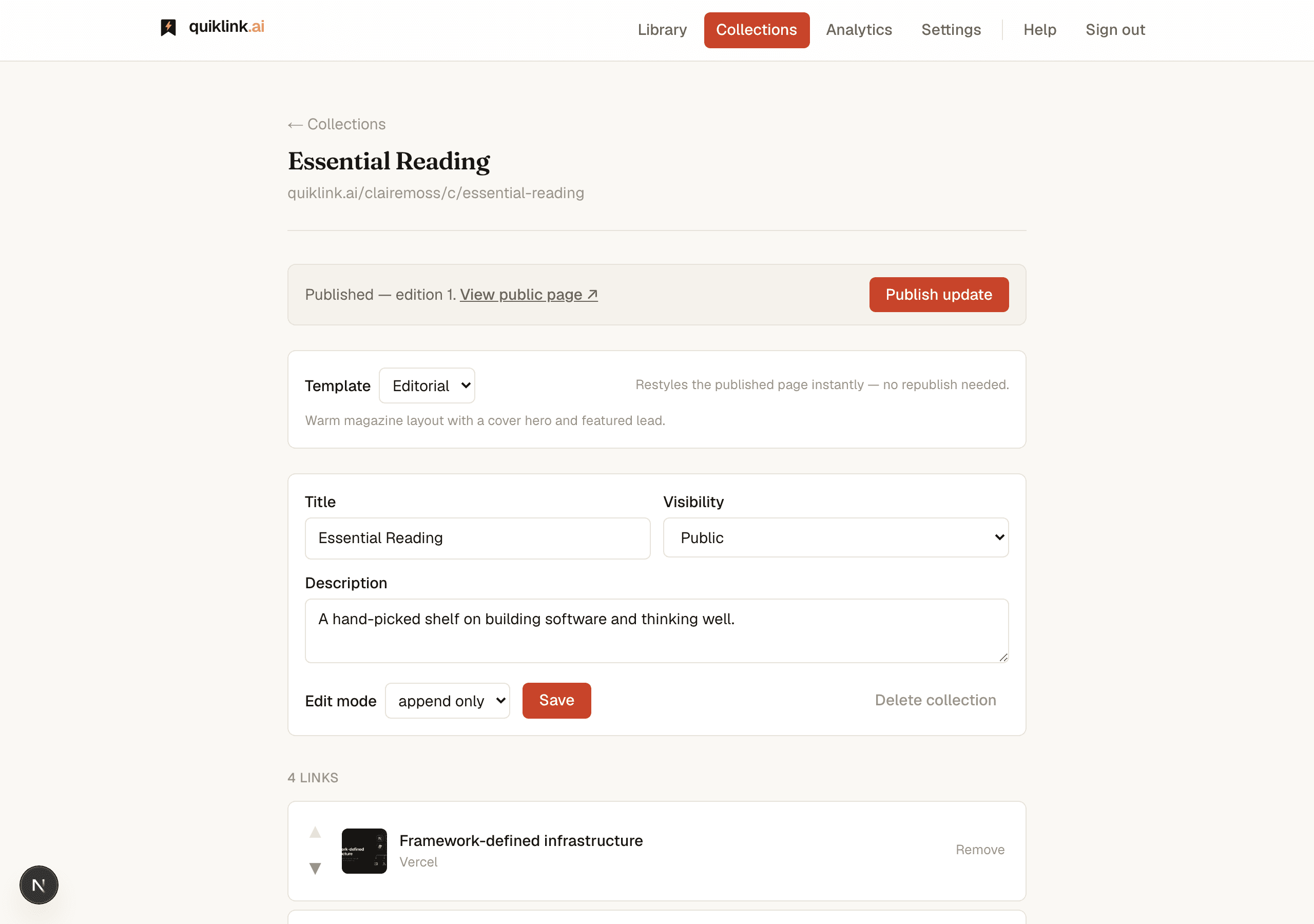
Open a collection's editor (via Edit in the detail view or directly from the collections grid). The editor shows a publish bar at the top, a metadata form, and the ordered link list.
- 1Set Visibility to Public or Unlisted and click Save to persist it.
- 2Click Publish in the publish bar. quiklink takes an immutable snapshot of the collection — an edition — capturing the links, order, notes, and metadata at that exact moment.
- 3The collection goes live at:
quiklink.ai/<handle>/c/<slug> - 4Any time you add or reorder links, click Publish update to snapshot a new edition. Past editions are numbered and permanently preserved — readers can browse the full history.
Templates
The Template selector in the editor controls how your public page looks:
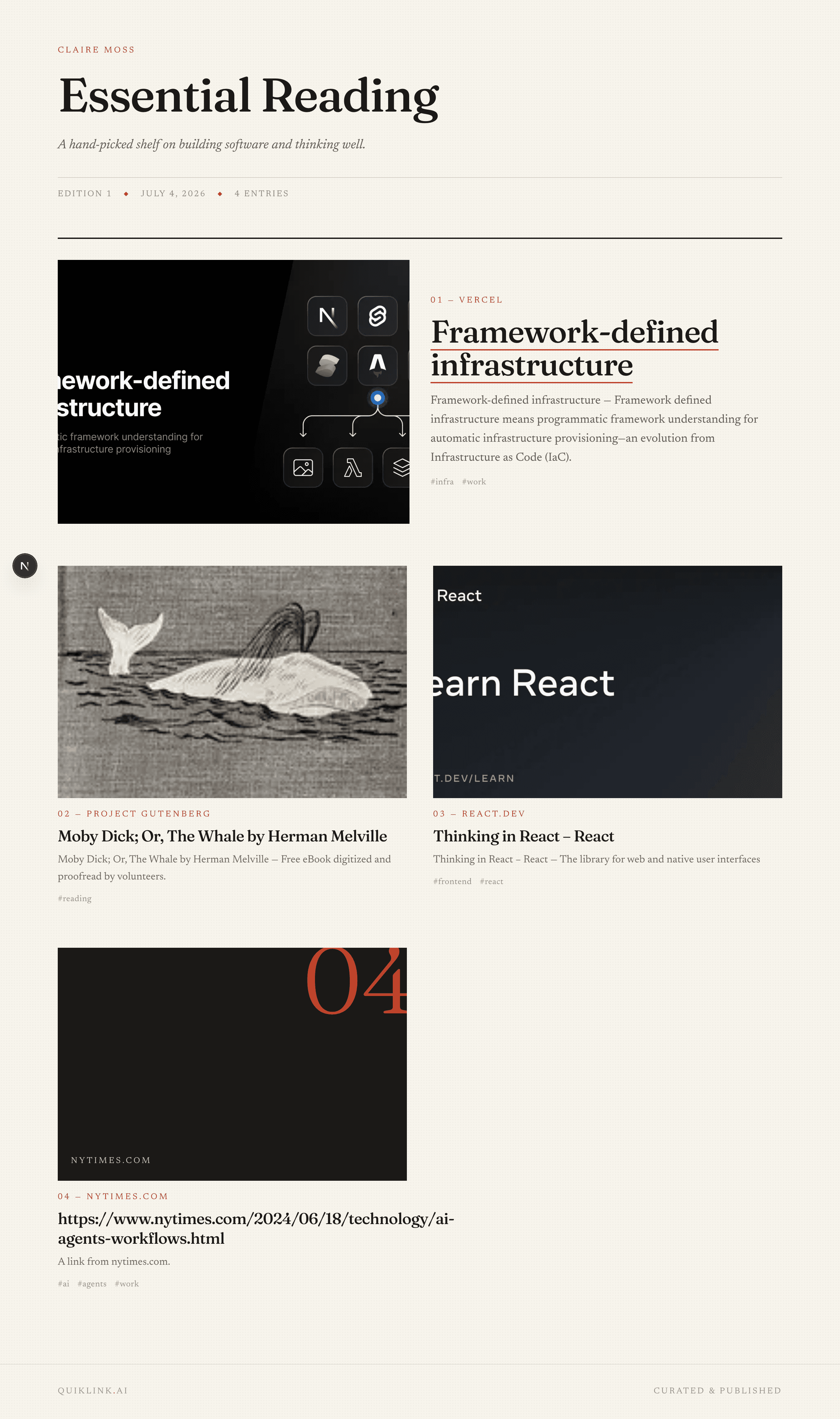
- Editorial — warm paper background, Fraunces display headings, Newsreader body text. Magazine-style, with support for a cover image and a lead-link feature slot.
- Modern — dark-first, monospace UI accents, sharp cards with amber highlights. Built for tech, developer, and research content.
Template changes take effect on the next page load — no republish is needed.
9. Click analytics
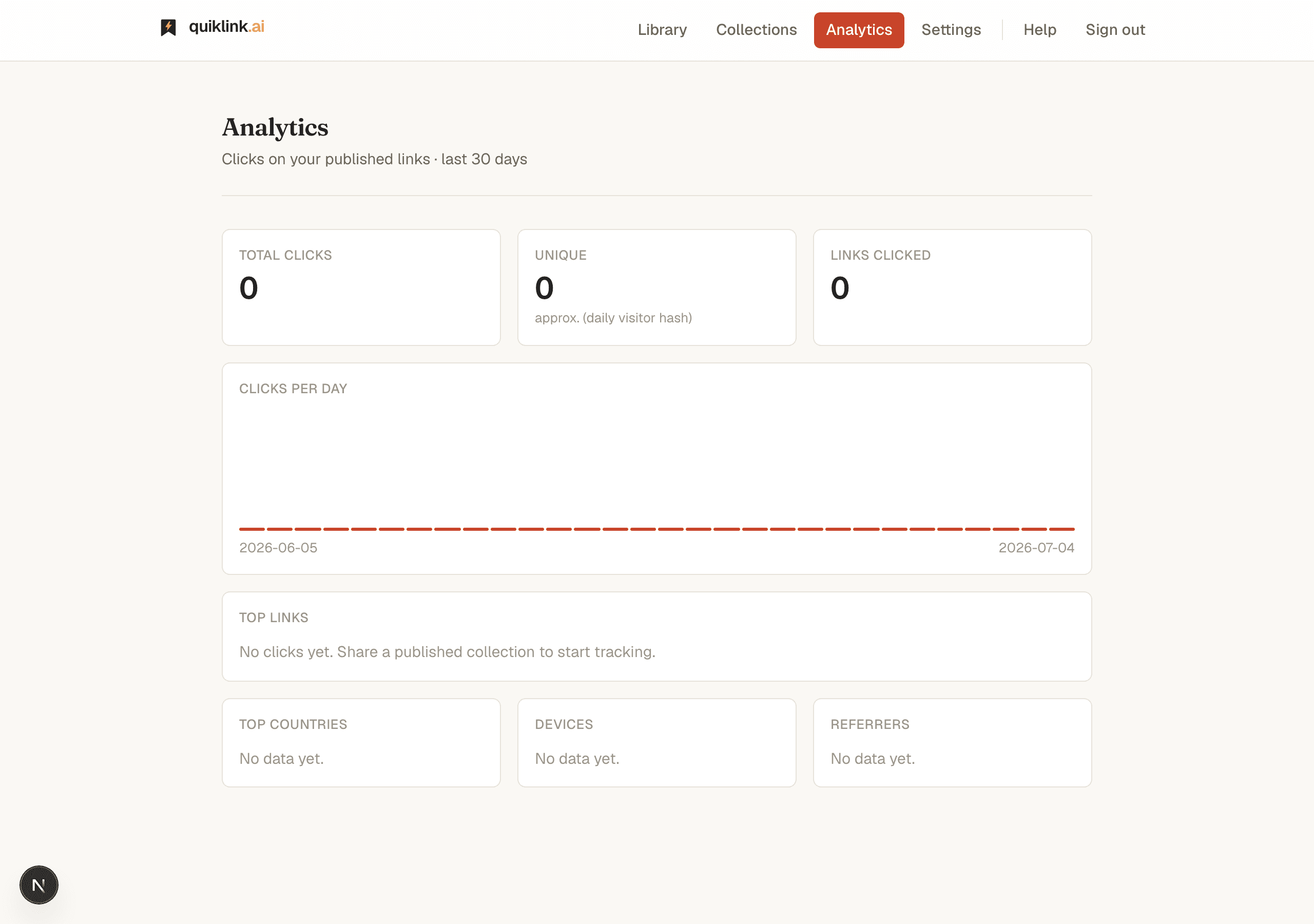
Every outbound link on your published pages is tracked. When a reader clicks, the click is recorded and they're instantly redirected to the destination via quiklink.ai/r/<id>. See the numbers under Analytics.
- Summary stats — total clicks, approximate unique visitors (using a daily visitor hash, not cookies), and the count of distinct links that received clicks — all over the last 30 days.
- Daily trend — a bar chart showing click volume day by day so you can spot spikes when content is shared.
- Top links — your ten most-clicked links, ranked by total clicks with the source domain shown.
- Audience breakdowns — countries, device types (mobile / desktop / tablet), and referring domains so you understand where your readers come from.
10. Connect Claude & the API
quiklink can be written to from outside the app. Ask an AI assistant like Claude to research a topic and build a private, tagged collection for you — or call the REST API from your own scripts. Both use a single personal access token, and everything they create lands in your library private by default, exactly like a link you save yourself.
- Connect Claude (MCP). quiklink runs a remote Model Context Protocol server with one-click sign-in — add it as a custom connector in Claude and it gains tools to search your library, create links, and assemble collections in a conversation. No token to copy.
- REST API. Plain HTTPS endpoints under
/api/v1for scripts, backends, and integrations. Create a token in Settings → API tokens and send it as a bearer header.
Full setup, the list of tools Claude gets, and every endpoint are in the developer guide.
11. Privacy & ownership
- Private by default. Your links, notes, and tags are visible only to you. Row-level security is enforced at the database layer — requests can only ever read your own rows, regardless of how they arrive.
- Public pages read snapshots only. A published page is served from an edition snapshot — a frozen copy of the collection taken at publish time. It never queries your live private library.
- No raw IP addresses. Click analytics store only header-level signals: country, device type, browser family, and referring domain. Your readers are not personally identified and quiklink does not fingerprint them.
- Your data, your control. Set any collection back to Private and its public page disappears instantly. Delete a link from your library and it is removed from all collections and from future edition snapshots.